Getting Started
Getting Started
Start here. This section shows you how to sign in, find your way around the home screen, and understand the few words that every other page uses.
In this section
- Overview (this page): what the app is and what it does for you
- Login: how to sign in, and what to do if you can't
- Dashboard: the Pulse home screen and what every card means
- Concepts: account, property, reservation, task, teammate
- Onboarding a new account: what the host prepares, connecting the guest WhatsApp number
Overview
luxury.host helps you run short-term rentals. It sits between your booking channels (Hospitable, Airbnb, Booking.com, direct) and your daily work (cleaning, check-in, guest messages, payouts).
What it does for you:
- Receives reservations automatically from your booking channels.
- Generates tasks automatically for each reservation: generate access code, schedule cleaning, send check-in instructions, send pre-checkout reminder, request review.
- Routes those tasks to the right teammate (you, a host, a cleaner) on WhatsApp, with buttons to tap.
- Auto-resolves tasks when the work is done. For example: the access code was generated, the cleaner sent a photo of the bedroom, or the guest replied to the pre-checkout message.
- Reports the results: revenue per property, payouts owed to owners, number of messages, cleaner results.
What you do, what the app does
| You do | The app does |
|---|---|
| Set up a property once (photos, address, prices, check-in window, Nuki lock IDs) | Makes a guidebook PDF for every booking |
| Approve a cleaner or host as a teammate | Makes a Nuki PIN for each teammate that stops working when their role ends |
| Write a task template once (e.g. "Send Check-in 24h before arrival") | Runs that template for every future reservation, in the right language |
| Reply to a guest's WhatsApp once | Asks the AI to suggest the next reply in the guest's language, using your FAQ |
| Mark a payout as paid in the report | Saves it and takes it off the owner's "owed" balance |
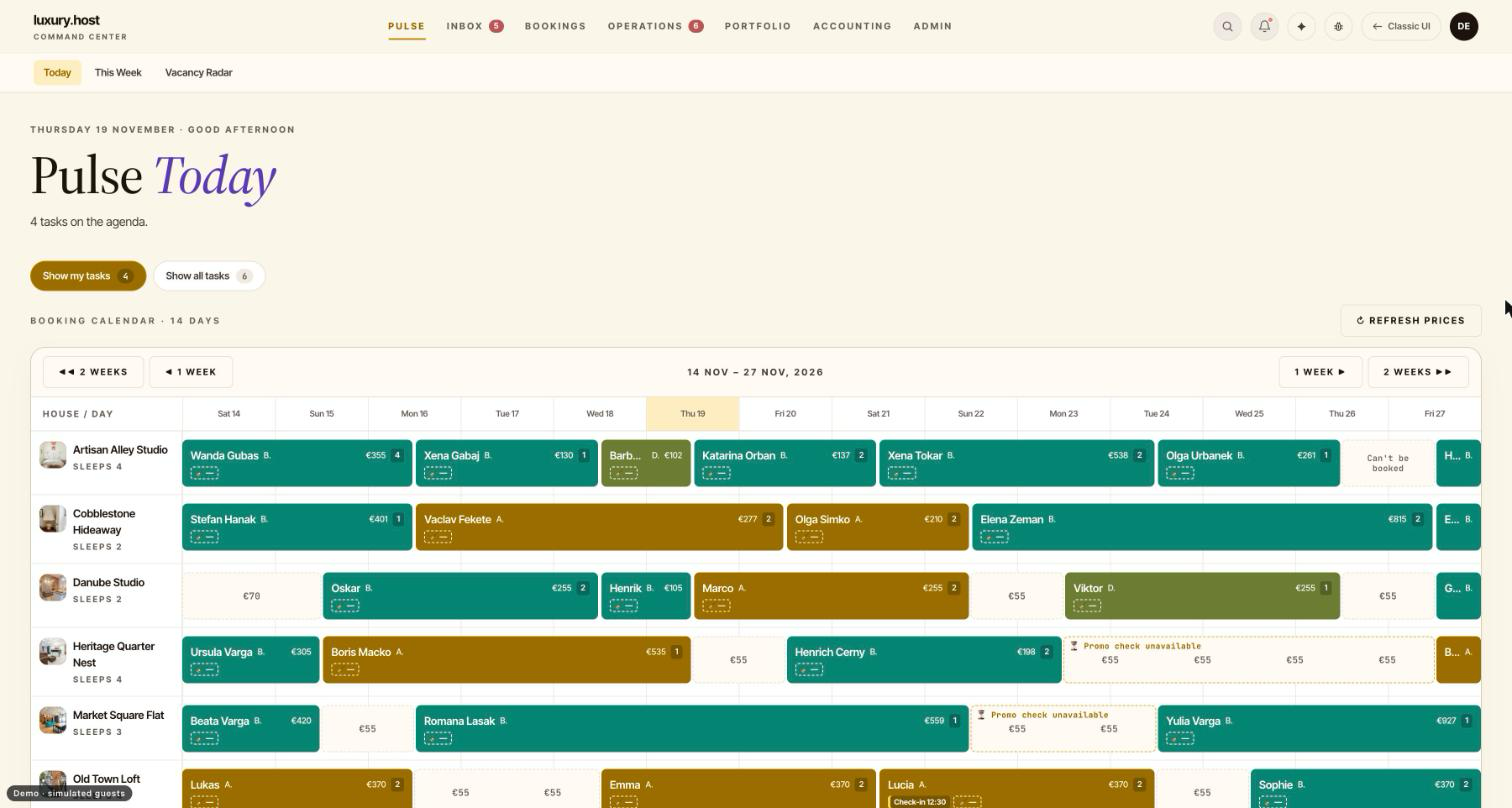
Pulse: your main screen
Most hosts work from one screen: Pulse. It shows:
- Today's check-ins and check-outs
- Tasks waiting for you
- Tasks that will run on their own in the next few hours (so you can step in before they do)
- Recent guest messages the AI could not answer yet
If you look at one page every day, make it /pulse. The rest of this manual explains the cards and buttons you see there.
Your account
You only see your own account's data: your properties, bookings, team and settings. Nobody from another account can see them.
Next steps
After you sign in and look at the dashboard, these are good places to go next:
- Onboarding a new property → How to add a new property
- Receiving your first booking → Reservations → Reservation List
- Setting up an automated check-in flow → Task Templates → Editor
- Adding your cleaning team → Team & Access → Teammates
- Running the day → How to run daily operations
- Keeping consumables stocked → How to monitor supplies
Source: the luxury.host operator manual.